
Skip to content

 · 2 min read

Mangold Software Manager | How to Install Mangold Software on Windows and macOS

Step-by-step guide to installing Mangold INTERACT and other products on Windows and macOS using the Mangold Software Manager, USB license key, or soft-license code.

Step-by-step guide to installing Mangold INTERACT and other products on Windows and macOS using the Mangold Software Manager, USB license key, or soft-license code.

Mangold Software on Windows

Follow these steps if you want to run a Mangold Software on your Windows PC.

1. Prerequisites

You need a physical Mangold USB license key OR a Mangold soft-license code (like “XXXX-XXXX-XXXX-XXXX”).

At least one of them is necessary for the following Mangold Software Manager to work.

2. Download and run the Mangold Software Manager

Software Manager Download

3. Install Products using the Software Manager

After starting, the Mangold Software Manager downloads the latest Mangold Software product (INTERACT, VideoSyncPro, Mangold Vision…) depending on the licence information you provide while using the Software Manager.

You can choose which products you want to download and install.
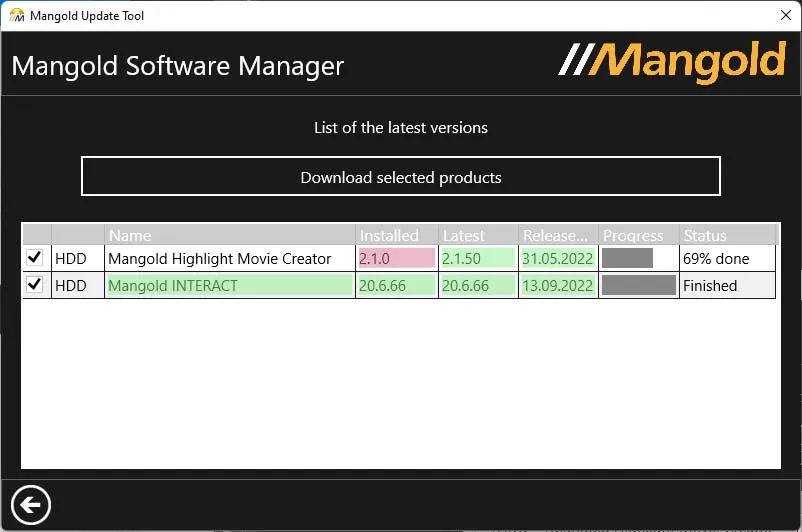
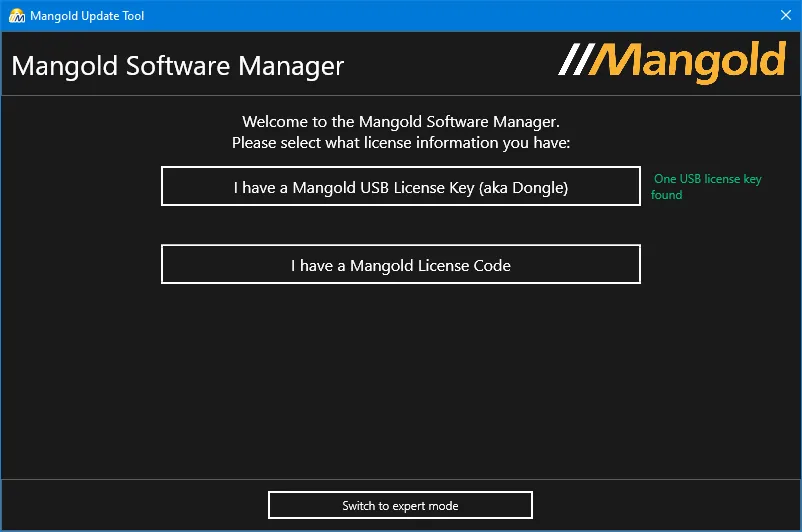
Mangold Software Manager download software Mangold Software Manager main screen

Mangold Software on macOS

Follow these steps if you want to run a Mangold Software on your macOS device.

Note: You may not be able to start INTERACT after installation if your licence is not valid for this latest version. In this case, please contact our team or ask in advance whether your existing licence is suitable for this latest INTERACT. Contact Us

1. Step - Installing required drivers

The CodeMeter User Runtime is required for all Mangold Software installations on macOS.

Download CodeMeter User Runtime
  1. Click Download next to the macOS version
  2. Allow CodeMeter downloads
  3. Mount the CmRuntimeUser dmg by double-clicking the downloaded CodeMeter *.dmg file
  4. Double-Click the CmInstall.pkg file available on the disk image (dmg)
CodeMeter Runtime Download

2. Check your USB License Key compatibility

CodeMeter Control Center screenshot

Skip this step if you have a soft-license code (like “XXXX-XXXX-XXXX-XXXX”)

If you have a physical USB license key (“Dongle”), and use it on macOS for the first time, check its compatibility:

  1. Start the just installed CodeMeter Control Center app
  2. Insert the physical USB license key
  3. If the serial number of the stick is visible in the left pane, your USB license key is compatible

If nothing appears, your license key is not compatible; please contact support

3. Download and Install Mangold INTERACT

Follow the instructions in the linked PDF-file:

Open Instructions

FAQ - Frequently Asked Questions

What do I need before installing Mangold software?
You need either a physical Mangold USB license key (dongle) or a Mangold soft-license code in the format XXXX-XXXX-XXXX-XXXX. At least one of these is required for the Mangold Software Manager to activate and install products.
How do I install Mangold INTERACT on Windows?
Download the Mangold Software Manager from videoanalysis.net/setup/MSM and launch it. The Software Manager detects your license, downloads the latest compatible products (INTERACT, VideoSyncPro, Mangold Vision, etc.), and guides you through installation.
What is needed to install Mangold INTERACT on macOS?
macOS installations require the CodeMeter User Runtime from Wibu Systems to be installed first. Then follow the PDF installation guide for INTERACT on macOS, available through the Mangold Software Manager or the linked PDF download.
My USB license key is not recognized on macOS - what should I do?
Open the CodeMeter Control Center app and insert the USB key. If the serial number does not appear in the left panel, the key is not macOS-compatible. Contact Mangold Support to obtain a compatible key or a soft license code.
Can I install multiple Mangold products with a single Software Manager run?
Yes. The Mangold Software Manager lists all products covered by your license. You can select which products to download and install in a single session.
What should I do if Mangold INTERACT does not start after installation on macOS?
This usually means your license is not valid for the installed version. Contact the Mangold sales team at sales@mangold-international.com before upgrading to confirm whether your existing license covers the latest version.
    Share: