
Tutorial · 2 min read
Adjust Multimedia Timing in Mangold INTERACT
Learn how to shift the times of your media files to link multiple files or perform behavioral coding with time-of-day information.
When analyzing recorded behavior, accurate timing is essential. In Mangold INTERACT, each video file normally starts at 00:00:00:00, which works well - until it doesn’t meet your requirements. Check out this tutorial to learn how to adjust the time of your multimedia files in Mangold INTERACT to meet your specific needs.
What You’ll Learn in Just a Few Minutes
- How to set a custom start time for multimedia files in Mangold INTERACT
- When and why adjusting media timing is necessary for accurate behavioral analysis
- How to link media files with time-shift information so Mangold INTERACT applies timing correctly
- How to align multiple video files chronologically when a recording is split into chunks
- How to merge all coded Events into a single dataset for seamless final analysis
Video Tutorial
- 0:47 Log daytime information
- 1:57 File reference with time shift information
- 2:11 Open linked and adjusted media files with a double-click!
- 2:33 Events receive day time information
- 2:50 Link multiple media files together chronologically
- 3:20 Chronological sets with linked videos
- 3:42 Identify the start time of the second media file
- 4:07 Set the start time of the second media file
- 5:40 Merge all Events to a single Set for joined analysis of the whole session.
Content Summary
By default, Mangold INTERACT logs all events on a shared timeline using the standard video timing, which starts at zero for each recording.
This article explains how to change the standard multimedia timing so that events can be logged with their original time information.
We also demonstrate how to adjust the timing of sequential recordings when the video recording system divides the session into multiple videos. This allows the resulting events to be analyzed as a single session.
Whether you’re conducting research, analyzing behavior, or managing multimedia data, this tutorial will help you streamline your workflow and leverage Mangold INTERACT’s robust capabilities.
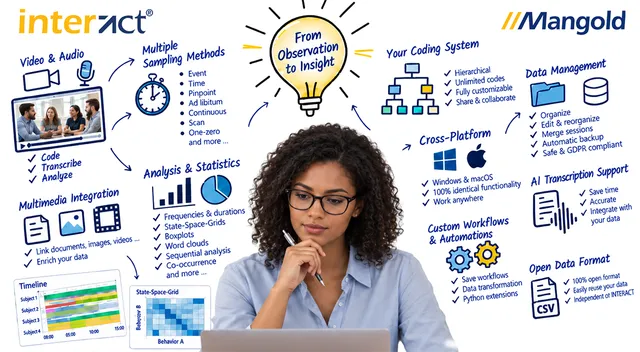
Mangold INTERACT: One Software for Your Entire Observational Research Workflow
From audio/video-based content-coding and transcription to analysis - Mangold INTERACT has you covered.